
Table of Contents
Unlocking Video & Audio Magic with ffmpeg on macOS
Looking to work a little terminal magic on your media files? If you’re a command-line dweller on macOS mike me, then it’s time to meet your powerhouse: ffmpeg. This open-source, Swiss-army knife of media processing lets you convert, trim, extract, and tinker with audio and video in just a few keystrokes. Forget dragging things into bloated apps—ffmpeg gives you muscle, speed, and flexibility, all from the comfort of your Terminal.
What Is ffmpeg and Why Should You Care?
A Command-Line Super Tool
At its core, ffmpeg is a command-line tool for processing, converting, and manipulating audio and video files. Need to convert a WAV to MP3? Crop a video? Extract audio from a screen recording? ffmpeg knocks these out effortlessly, making it a favorite for developers, content creators, and anyone who needs to wrangle media files.
Think of ffmpeg as a magical blender for media: toss in any format, pick your recipe, and it’ll serve up your data pureed, sliced, or julienned exactly how you want.
Installation on macOS
First things first—if you haven’t already installed ffmpeg, pop open your Terminal and run:
brew install ffmpeg
Homebrew will handle the rest. Now, let’s see what this powerhouse can do for you.
Taming Your Media: The Power Moves
1. Extracting Audio from Video—My Everyday Lifehack
Ever wish you could pluck the audio from a video, leaving the visuals behind? Maybe you recorded a Zoom talk and want to listen while on the go. Here’s a personal favorite example I use to convert my video files to MP3 so I can listen to them via my music player on my phone:
ffmpeg -i "video-file.mkv" -vn -ab 192k -ar 44100 -y -ss 01:30:33 -to 05:38:25 band-practice.mp3
Let’s break that down:
-ipoints to the input file.-vntells ffmpeg: “no video needed—audio only, please.”-ab 192ksets the audio bitrate.-ar 44100picks the sample rate (standard for MP3).-yoverwrites existing files (no questions asked).-ssand-totrim your MP3 to a specific time window.- The output file is named for easy mobile listening later.
This is huge for podcasts, lectures, or any long-form video content you’d rather consume ears-only.
2. Changing File Formats Like a Pro
Say goodbye to compatibility headaches—ffmpeg can swap your file format in seconds:
ffmpeg -i input.mov output.mp4
That’s seriously it. There’s no need to crack open Final Cut or hunt for online converters that watermark your creations.
3. Trimming, Cropping, and Resizing Video
Want just a slice of your video? Here’s how you chop:
ffmpeg -i wholefile.mp4 -ss 00:15:00 -to 00:17:00 -c copy highlight.mp4
-sssets the start time,-tothe end.-c copykeeps things fast and lossless.
Want to resize that file for a quick upload?
ffmpeg -i big.mov -vf scale=1280:720 small.mp4
Boom—your video’s ready for the web.
4. Batch Processing with a Little Shell Scripting
Let’s turn pro. Want to convert every .wav in a folder to MP3s?
for f in *.wav; do
  ffmpeg -i "$f" "${f%.wav}.mp3"
done
Fire that off, and walk away—your folder updates itself.
Essential Tips and Gotchas
- ffmpeg is FAST—but it’s also powerful enough to overwrite files in seconds. Double-check your output names!
- Stuck on a step? Run
ffmpeg -hfor help, or dive into its official documentation. - Automate with scripts to save hours on repetitive tasks, so you can focus on coding, not clicking.
Conclusion: Why ffmpeg Deserves a Spot in Your CLI Toolbelt
Whether you’re a developer curating test audio, a blogger snipping videos, or just a Mac user eager to make the most of your command line, ffmpeg is unrivaled when it comes to media manipulation on macOS. It’s speedy, scriptable, and can handle just about every file format you throw at it. Next time you need to convert, trim, or extract—you know what to reach for.
Hero Image Prompt
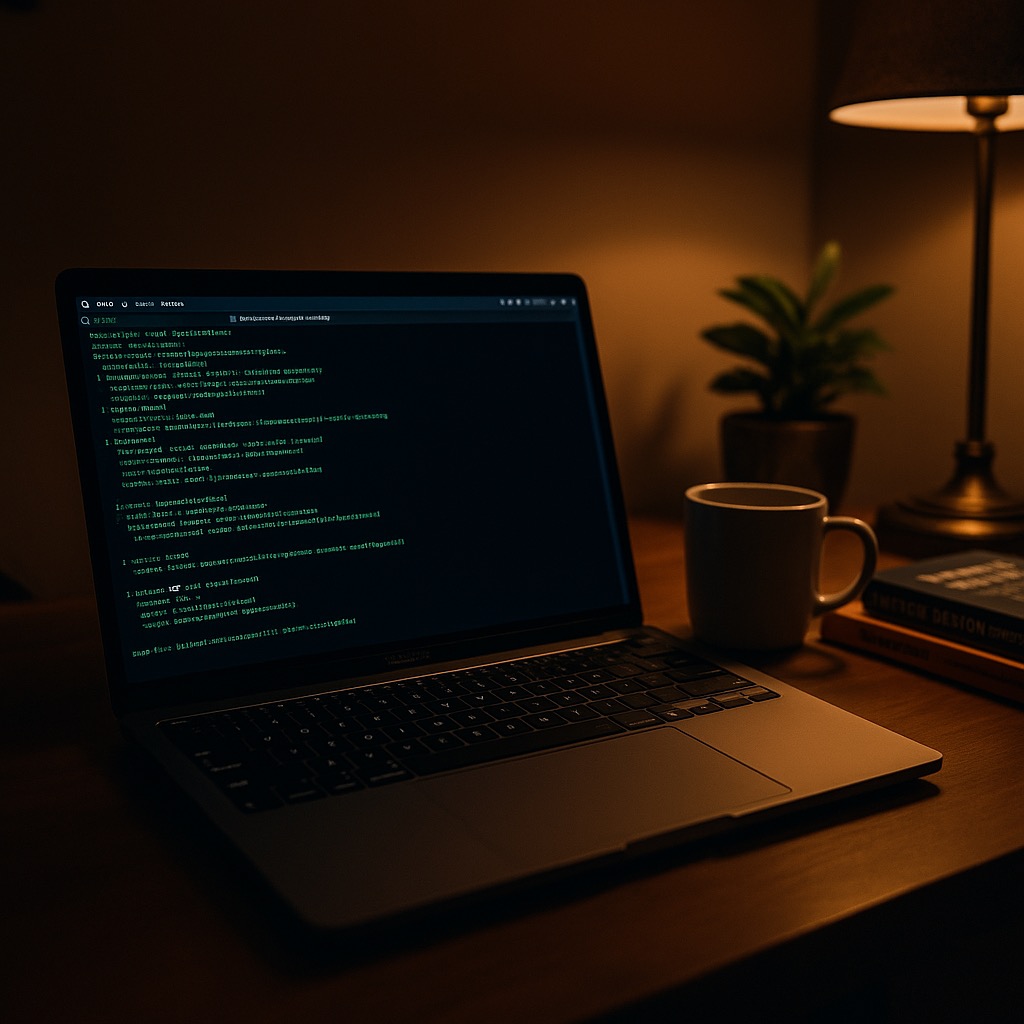
Create a stylish MacBook Pro open on a Terminal window, with code lines visible, set against a cozy home office desk. Emphasize an atmosphere of late-night creativity, splashed with warm screen glow and coffee nearby.
